


Manual
Timing a backyard ultra with a phone – from the first race to the last runner standing.
backyardtiming.com · Version 0.44.4 · October 2026
Contents
- 1. Quick start – your first race in 15 minutes
- 2. Before race day
- The race page (Overview)
- Race setup and logos
- Runners
- Online registration (optional)
- Rehearsal (test race)
- Race-day checklist
- 3. Race day
- Emergency contact and medical notes
- Check-in
- The timer app on the phone
- Tapping laps
- The timer on a laptop (Timing tab)
- Chip timing (optional)
- Timer app menu and settings
- Checkpoint timing (optional)
- Phones – is every timing phone alive?
- No signal? Nothing is lost
- Backyard rules – done for you
- Results, TV and announcer
- 4. After the race
- The story of the race
- Thank-you certificates for sponsors
- What works in a backyard
- Change log
- Sponsors
- Lottery
- Updates by e-mail – follow a runner
- Volunteers
- Race staff – co-directors, timers, medical, helpers
- Locations
- Race director profile
- 5. On your own website
- 6. Plans and payments
- 7. Problems and answers
 Manual
Everything about timing a backyard ultra with Backyard Timing – from the first race to the last runner standing.
1. Quick start – your first race in 15 minutes
- Sign up with your email and a password, then click the link in the email we send you to confirm your address. Your first race is free, whatever its size.
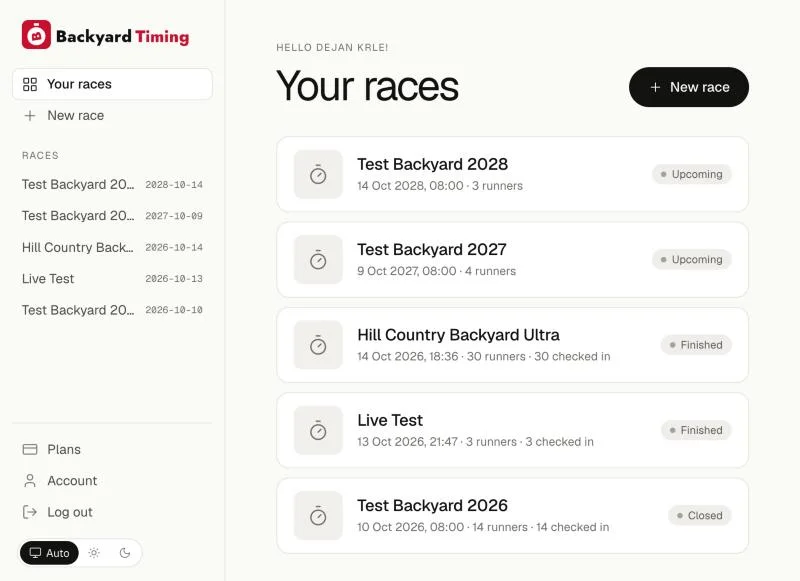
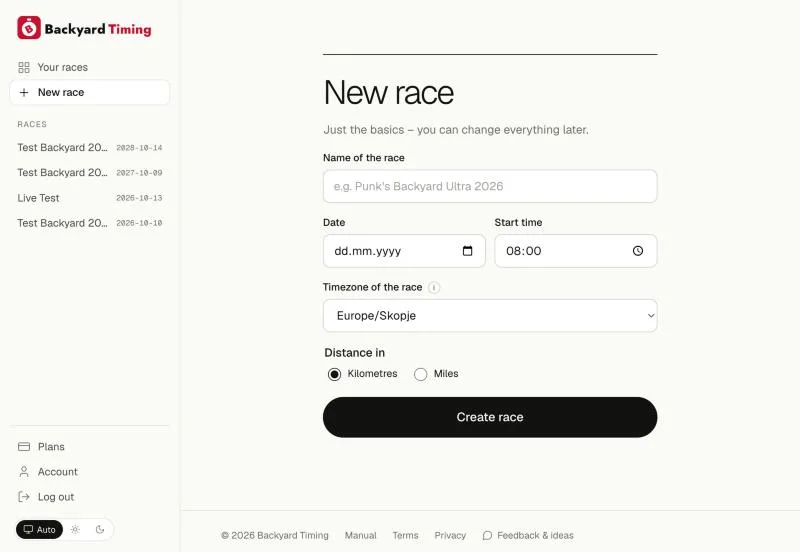
- New race – type the name, date, start time and timezone. That is all you need; everything else has good defaults (60-minute laps, 6.706 km).
- Runners – upload an Excel or CSV list from your registration system, type them in, or switch on online registration.
- Race day – check runners in, open the timer app on a phone with the PIN, and tap each runner when they finish a lap.
- Share the results page. It updates by itself – for families at home, on the big screen at the corral and on your own website.
Tip: do one rehearsal before your first race – see Rehearsal. Ten minutes with a few friends and two phones makes race day relaxed.
2. Before race day
The race page (Overview)
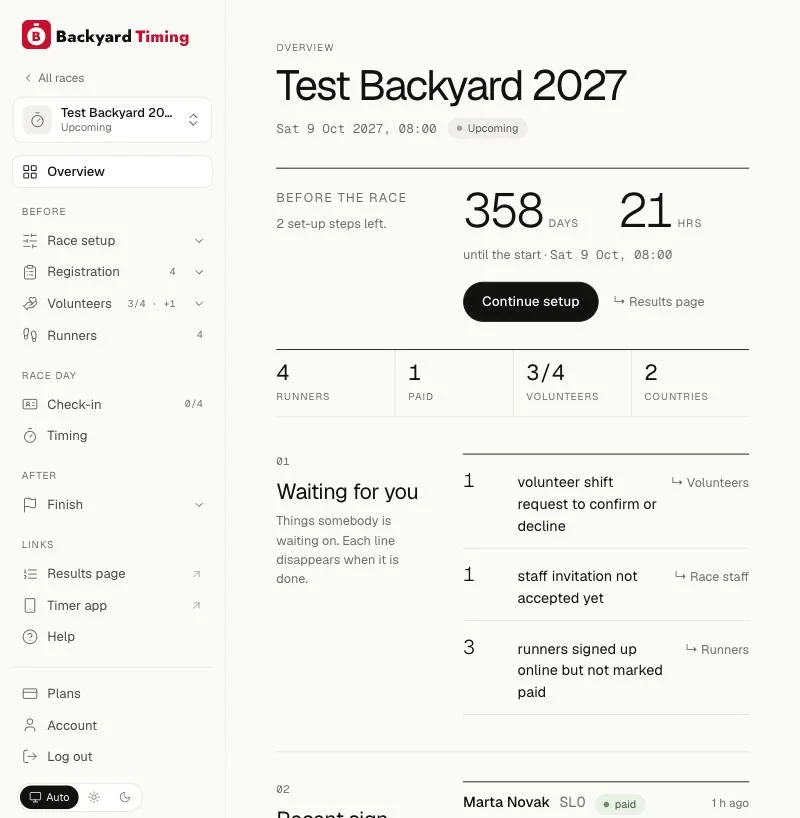
Every race has an Overview. The top follows the race: a countdown before the start, the clock to the next lap start while it runs (and how many are still in), the winner afterwards – with the main numbers below. Under the numbers: a short weather line (see Weather). Then: Waiting for you – things somebody is waiting on, like volunteer shift requests, staff invitations not accepted yet, runners not marked paid and e-mail addresses that bounced (each line disappears when it is done), Recent sign-ups from your sign-up page, Getting started (it disappears when everything is done), Race day with the timer app QR code and PIN and the race-day checklist, Results and sharing, your plan, and After the race. The menu on the left follows the order of the work: Before (Race setup, Registration, Volunteers, Runners), Race day (Check-in, Timing) and After (Finish), with small numbers next to them (runners, checked in, the yard that is running). Click the race name at the top of the menu to switch to another race. Race setup, Registration and Finish open into sub-pages (e.g. Race setup › General, Backyard Ultra, Updates by e-mail, Course & maps, Logos & sponsors, People with access): click the little arrow in the menu to see them, or use the tabs above the page – each sub-page shows only its own part. On a phone there is a bar at the bottom with big buttons – Check-in, Timing, Emergency (red) and Results – and Menu for everything else (also at the top right). Help in the menu opens the part of this manual for the page you are on. At the bottom of the menu: Plans, Account, Log out and Auto / Light / Dark – the look of the site on this device (Auto follows your phone or computer).
Race setup and logos
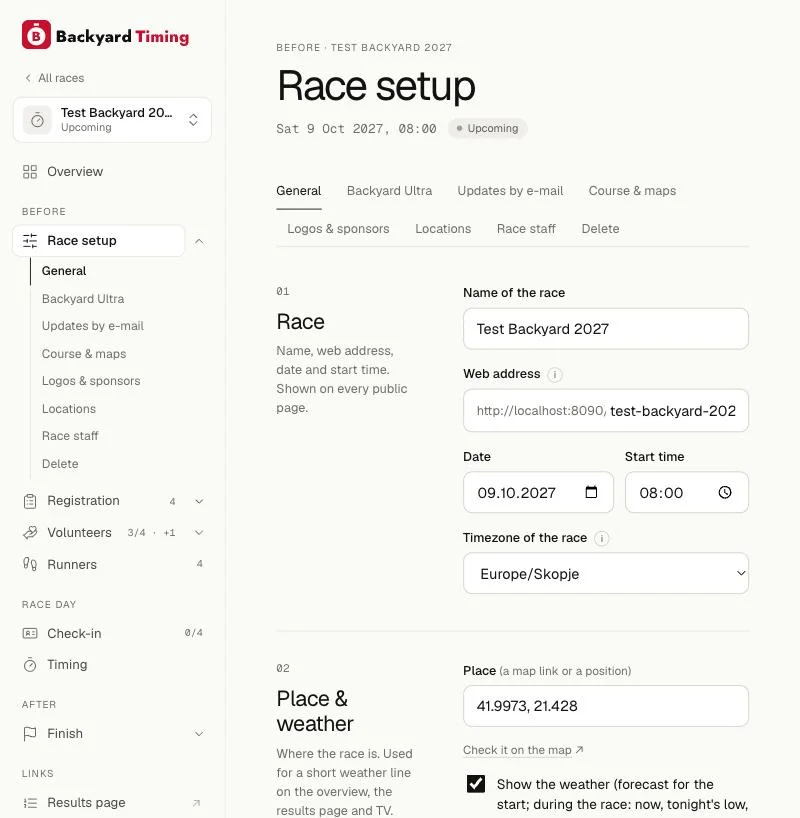
- Web address – the end of the address of the results page and the timer app (e.g.
/r/punks-backyard-2026). Change it before you share links, not after. - Date, start time, timezone – the start time is read in the race timezone, so helpers abroad see the right clock.
- A new lap every (minutes) – 60 for a classic backyard. Use 5 for a rehearsal.
- Distance – kilometres or miles, and the lap length (standard 6.706 km = 4.167 miles).
- Late window – how long after a new start a crossing still counts as a late finish of the previous lap (it is then a DNF). Empty = automatic: 15 minutes.
- Timer app warnings – "Not in yet" lists runners still out a few minutes before each start; "Missed last lap?" lists runners who just became DNF, in case a tap was missed.
- Language of the results page, timer app and sign-up form. Results page is public – switch off while you test. Show on the Backyard Timing homepage – on (normal) = your race is listed on the homepage and at /races: live (lap and runners still in), coming up, or past (winner and laps). It needs a public results page and a place; past races need at least one finished lap. Race colour – one colour of your race for the public pages (the live dot, chosen tabs, highlights). On your own website: keep the Backyard Timing look – off (normal) = the results blend into your website with a see-through background.
- Day and night loop (optional) – some backyards run a road loop at night. Set the night times (e.g. 20:00 – 06:00) and names: a lap that starts in that time runs on the night loop. The results page, TV and announcer show which loop is running, and announce the change. Results do not change.
- Logos – a wide logo (about 3:1) across the top of the results page, and a square logo (at least 512 × 512) for the app icon, TV screen and share pictures.
- Course view – estimated positions of runners (on by default, can be switched off), and whether TV mode switches between tiles and the map by itself.
- Backyard Ultra – call the laps "yards" (like Big's Backyard Ultra) everywhere: results, TV, announcer, timer app and certificates. Course record: leave it empty and it is taken from your past editions by itself, or type it with the holder's name. Ticket: if your winner earns a Bronze, Silver or Golden Ticket, the results page, TV and certificate say so.
- Place & weather – Town or venue and Country are shown with your race on the Backyard Timing homepage (with the flag). Map position: paste a map link (Google Maps, Apple Maps, OpenStreetMap) or type the position (e.g.
41.9973, 21.4280). Empty = the start of your GPX course. The overview, results page and TV then show one short weather line: before the race the forecast for the start hour, during the race the weather now, tonight's low and the next sunset or sunrise. In °C and km/h, or °F and mph when the race uses miles. The forecast comes from MET Norway (free) and is updated every 15 minutes; it disappears when the race is over. Switch it off with the tick box. - Course map – upload the loop as a GPX file (from Strava, Garmin Connect, Komoot…), one per loop. The results page draws the course, and runners can download the GPX.
Runners
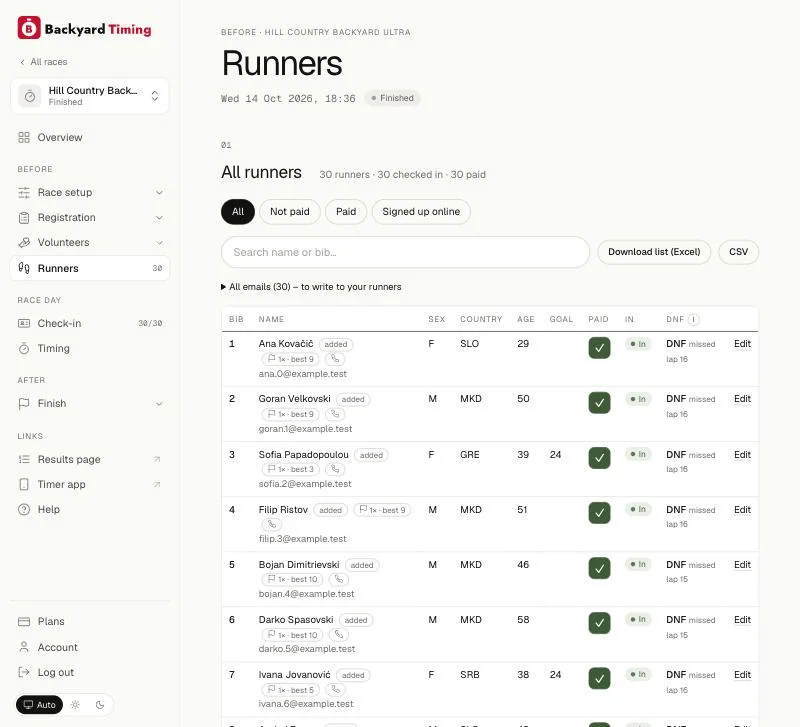
Three ways to fill the list – mix them freely:
Languages: English and Macedonian (Македонски). Race setup › General › Race language sets what runners, spectators and timers see (results, story pages, timer, checkpoint phone, e-mails to runners). Your own menus follow My account › Language. Each timer phone can also pick its own language (☰ › Settings).
- Upload a list – Excel (.xlsx) or CSV – from your registration system or a spreadsheet. The first row has the column names, in any order:
bib, first_name, last_name, sex, country, goal, birth_date, email. Only a name is required. Upload again after changes: new runners are added, changed details updated, check-ins and chosen bibs stay. "Example: Excel / CSV" shows the format. Old.xlsfiles: open them in Excel and "Save as" .xlsx first. - Add a Runner Manually – for late entries. Click the title to open the form.
- Online registration – runners sign up themselves (below).
Timing chip and Live tracking link are optional: the chip number only matters with an electronic timing system (see Chip timing); a tracking link (e.g. Garmin LiveTrack) shows as 📍 next to the runner's name on the results page.
Sex is M, F or NB (non-binary). Country is shown everywhere as the 3-letter IOC code (MKD, GBR, USA, GER, GRE, KOS) – the codes Big's Backyard Ultra results use – with a flag. You can type the IOC code, or a 2- or 3-letter ISO code (MK, DE, DEU): they are turned into the right country. Goal is the number of laps the runner hopes for – the results page shows who beats their goal. Date of birth and email are private: only you see them, never the public.
Runner history: a runner who ran earlier races on this platform gets a flag tag in the list (e.g. "3× · best 25" – hover for the races). The same person is found by the same e-mail, the same name and year of birth, or the same name in an earlier edition of your race. Only public results count.
Assign bib numbers – gives numbers to many runners at once: random, by age, by goal, by first or last name, most experienced first (best earlier result on this platform), or in registration order. Choose the first number and numbers to skip (e.g. 13). Checked-in runners and bibs that already have laps are never changed. Without a generator, runners can simply choose their number at check-in.
Under the generator, Remove all bib numbers empties the numbers of everyone not checked in, and Remove all chip numbers empties every runner's chip. Both work only before the first lap is recorded.
The list has filters (Not paid, Paid, Signed up online), a search box, Download list (Excel or CSV) and a box with all emails to copy into your mail program.
Online registration (optional)
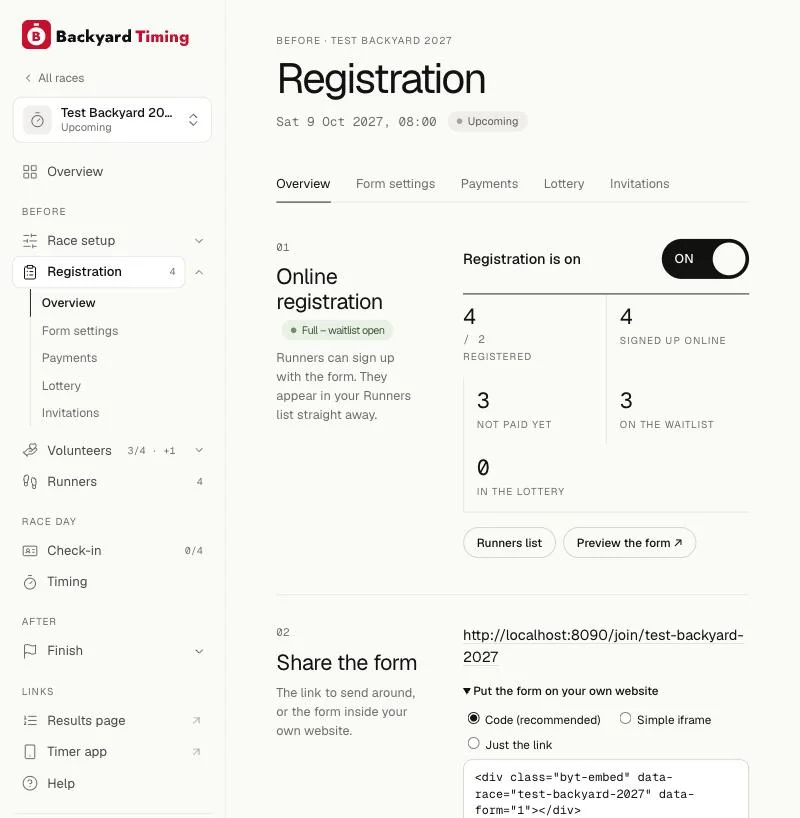
If you already use a registration system, keep it and upload its Excel or CSV list. If not, open the Registration tab and switch it ON:
- Places and dates – number of places, a waitlist when full, and when registration closes (empty = at the start).
- Fee and payment – the money goes directly to you. Write your payment instructions (bank account, PayPal link, deadline); runners see them after signing up and in their confirmation email.
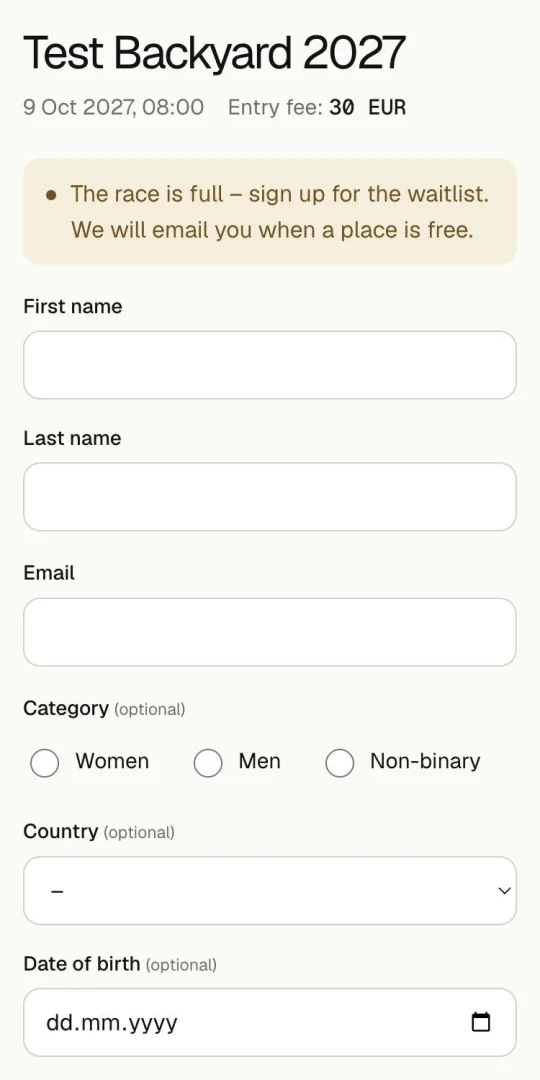
- Questions – name and email are always asked. Category, country, date of birth and goal can be required, optional or not asked, plus two questions of your own (e.g. T-shirt size). Add a link to your rules – runners must accept them.
- Share the form – a link, or a code block to put the form on your own website (see Your website).
- Payments – tick Paid in the Runners list when the money arrives. "Email a payment reminder" writes to everyone who signed up online and is not marked paid (at most once every 12 hours).
- Waitlist – when the race is full, people can join the waitlist. "Move into the race" adds them to the runners and emails them.
Rehearsal (test race)
Two easy ways to practise:
- Before the start of your real race – open the timer app and tap away. Taps before the start time are marked "Before start" and do not count. Later, on the Timing tab, press Delete test laps (before the start).
- A separate test race with 5-minute laps and a start time in a few minutes. Everything runs 12 times faster: late finishes, DNFs, the winner. Delete it afterwards (Race setup › Delete this race).
Race-day checklist
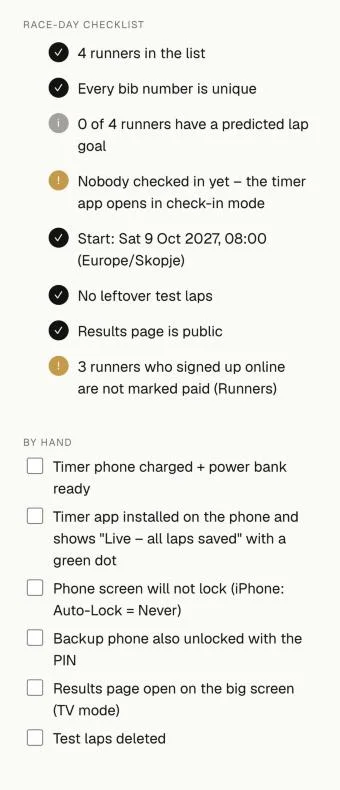
The Overview checks your race for you (bibs unique, start time set, runners checked in, no leftover test laps, everyone paid…) and has a list to tick by hand: phone charged, app installed with a green dot, screen will not lock, backup phone unlocked, TV screen open.
3. Race day
Emergency contact and medical notes
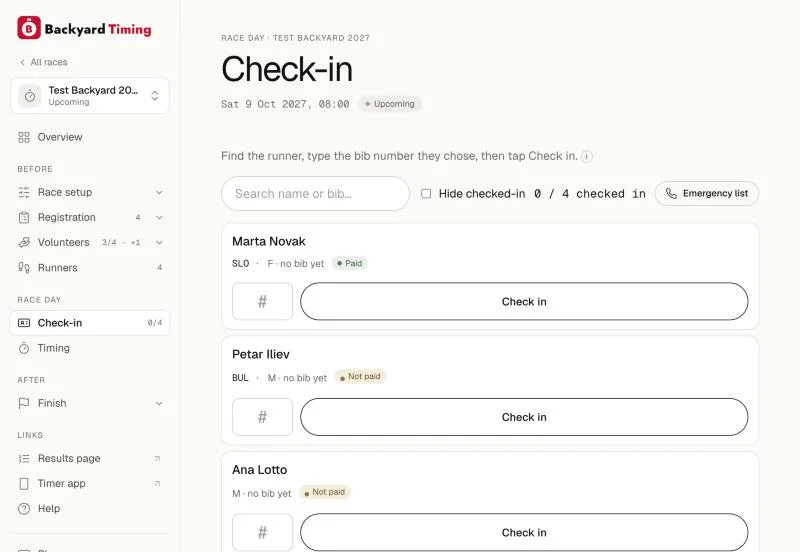
For every runner you can keep an emergency contact (name and phone) and medical notes (allergies, conditions, medication). Runners fill them in on the online sign-up form (Registration tab › Questions: optional, required or not asked), you type them in the runner form, or they come with the Excel/CSV list (columns emergency_name, emergency_phone, medical). They are private: never on the results page and never on the timer phones. At the check-in desk a red ☎ / ⚕ button shows them with one tap (the phone number is a link – tap to call). ☎ Emergency list on the Check-in page prints all of them on one page for the aid station – print it after check-in.
Check-in
Only runners who are checked in appear in the timer app and on the results page – so no-shows never disturb the grid. Check in at the desk on a laptop (Check-in tab) or on any phone in the timer app (☰ › Check-in & bibs). Search by name or bib, type or change the bib number, and press Check in. On a laptop the runners are a table (name, country, payment, emergency contact, bib); on a phone each runner is a card with a big bib box. With chip timing switched on, the desk also has a box for the chip number. A bib used twice is refused, and swaps are handled for you.
Reset all check-ins (bottom of the page, only before the first lap) un-checks everyone. Bibs go back to the numbers from the runners list – tick also remove all bib numbers to empty them instead.
25 runners are free. Runner number 26 can check in only if the race is covered by a plan – your free first race, a Race Pass, Season or Founder plan. Buy before race day, so check-in never stops. See Plans.
The timer app on the phone
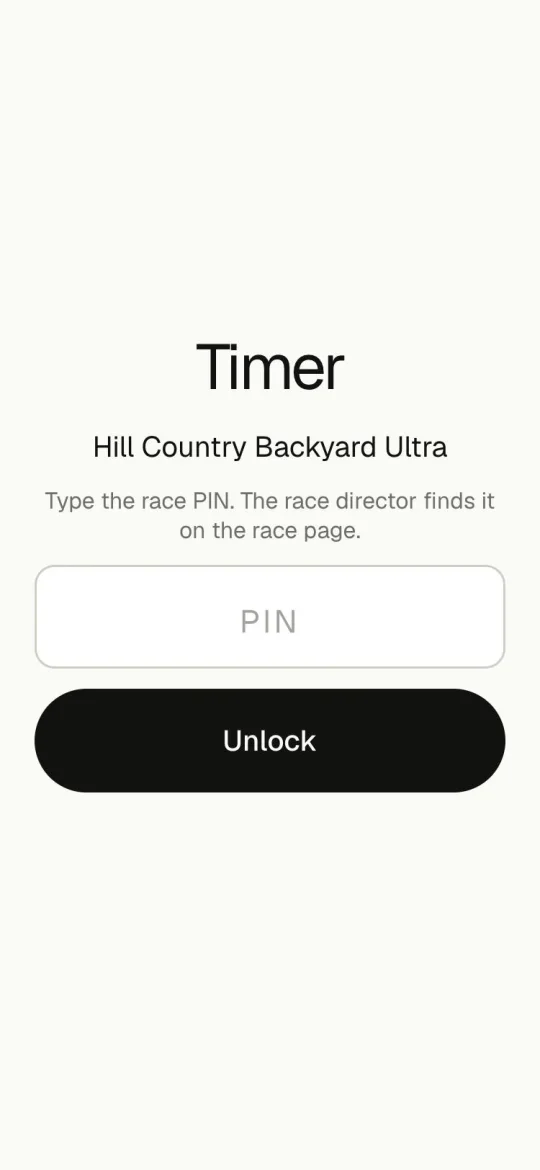
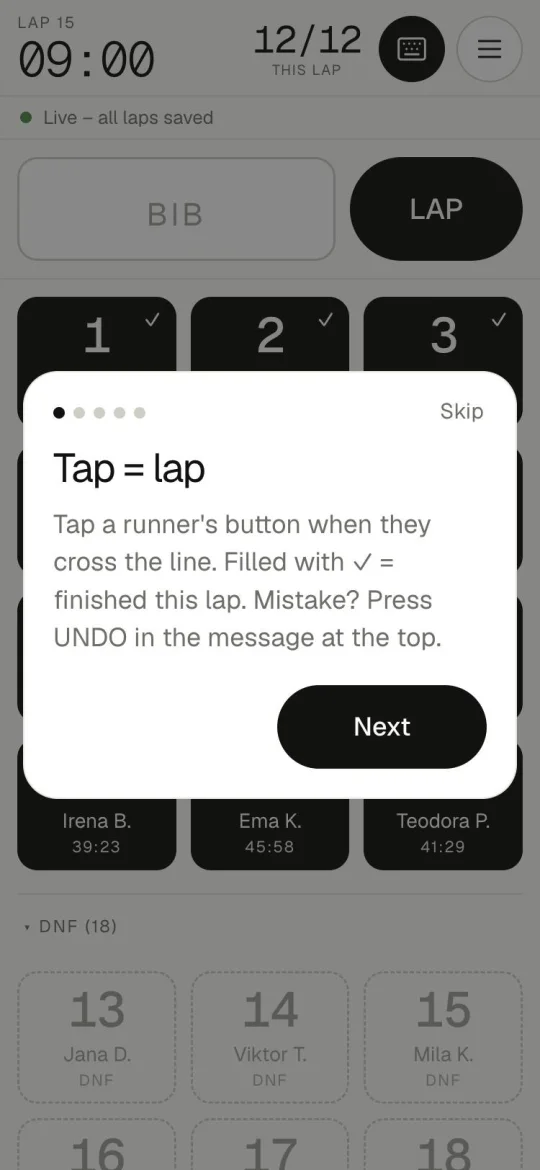
Scan the QR code on the Overview with the timing phone (or open the link), type the PIN, and install it: Android Chrome ⋮ › Install app; iPhone Safari Share › Add to Home Screen. It works like a normal app, no store needed. A short tour explains the basics the first time.
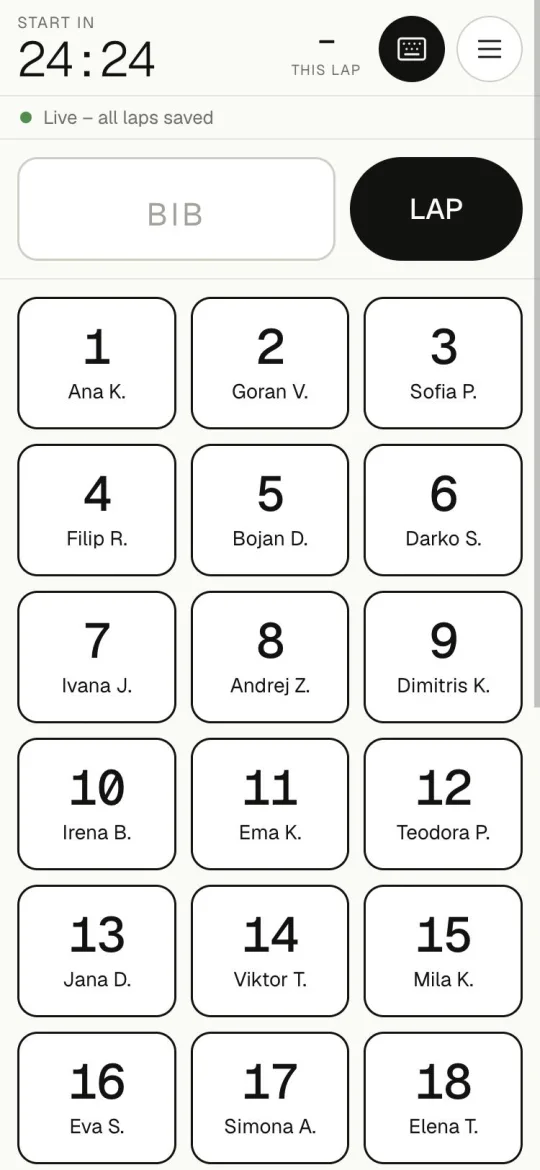
Use two phones with the same PIN: a main phone and a backup (or one at the finish line and one at the corral). Both send to the same race, and each lap shows which phone recorded it.
Tapping laps
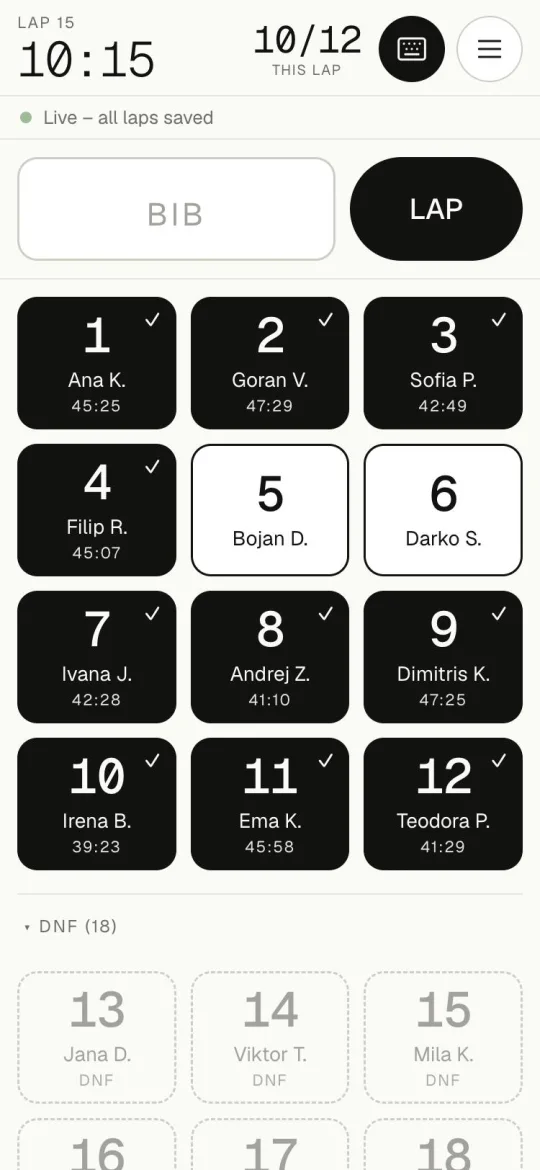
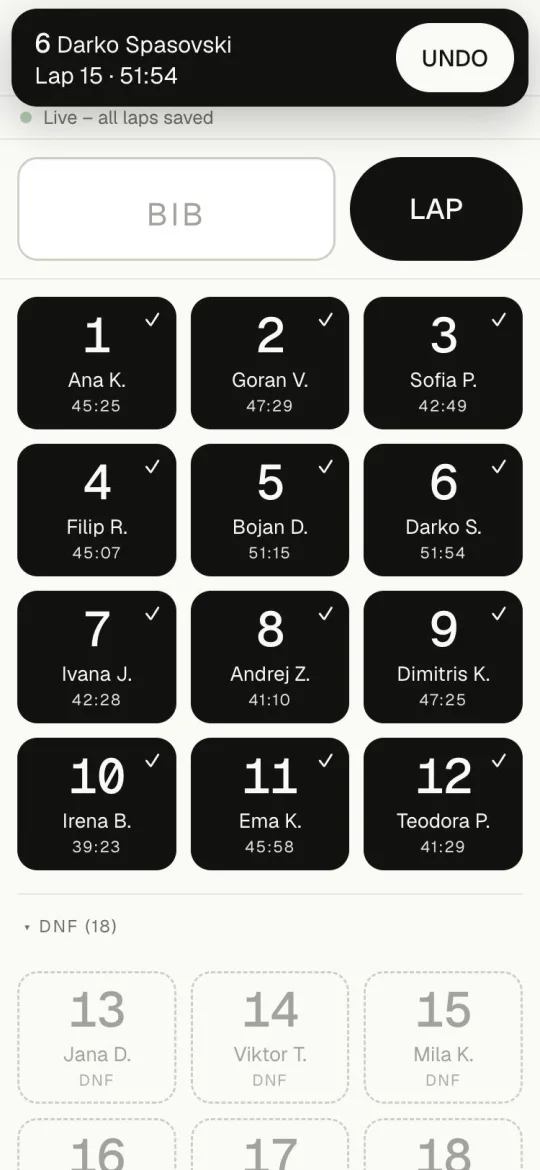
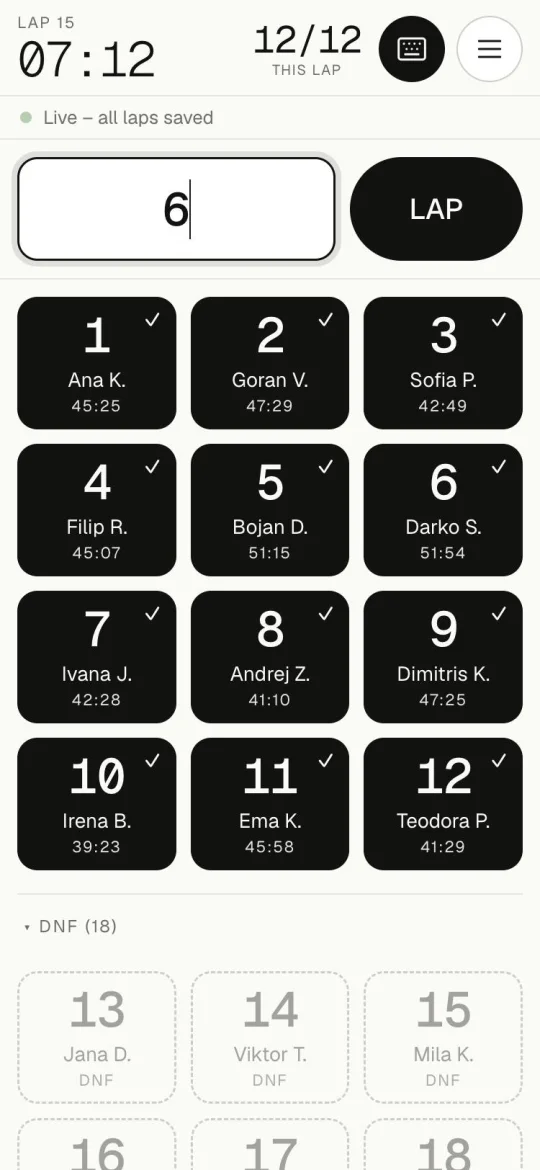
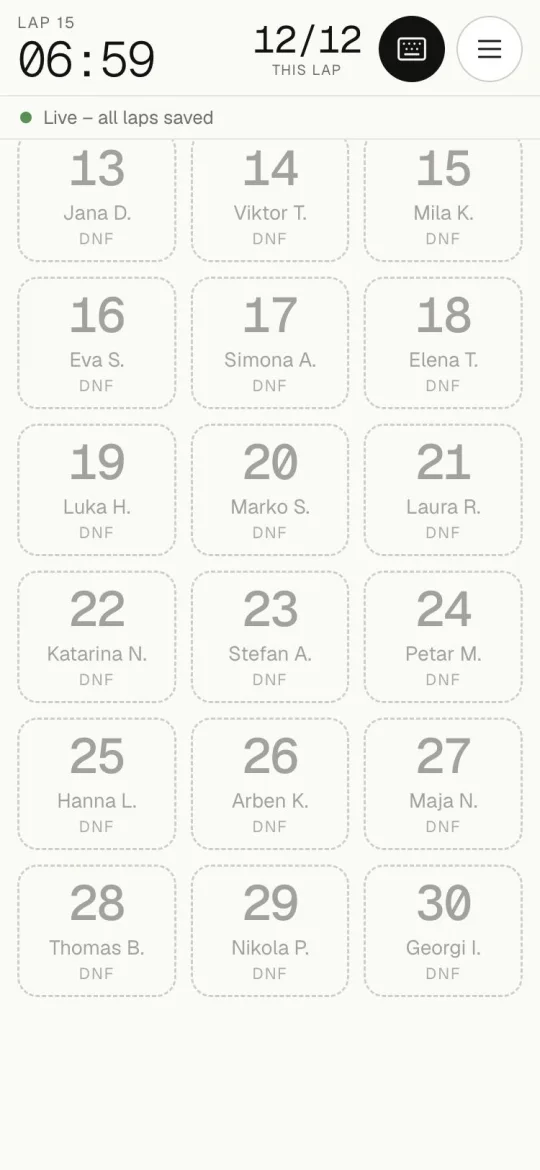
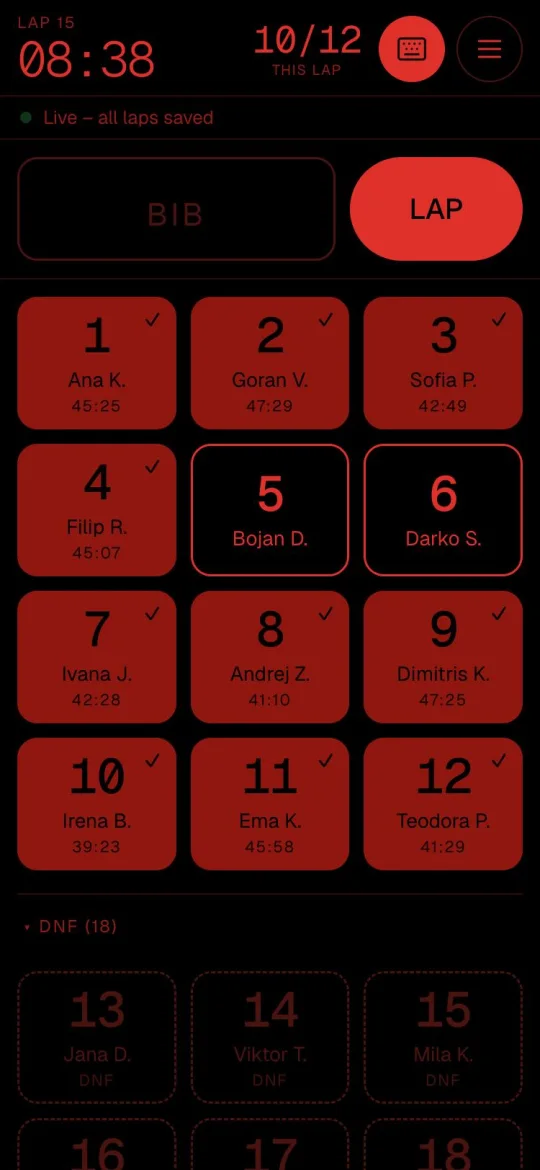
- Tap = lap. Tap a runner's button when they cross the line. Filled with ✓ = finished this lap. The top bar shows the lap, the clock to the next start and how many runners finished this lap (e.g. 17/34).
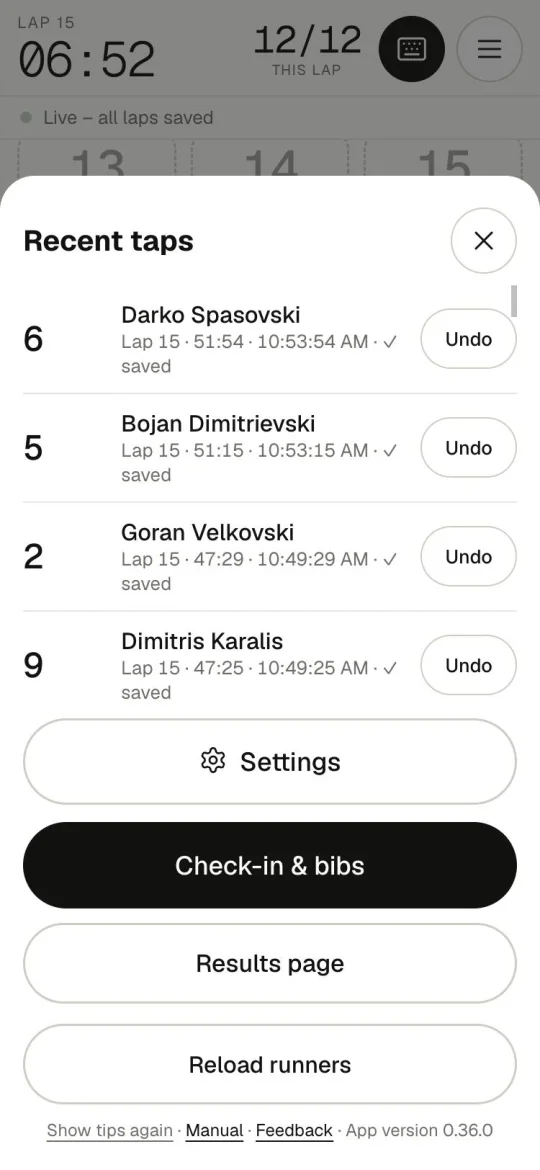
- Mistake? Press UNDO in the message at the top. Older taps: ☰ › Recent taps › Undo.
- Keyboard (⌨ button) – type a bib and press LAP. Useful with many runners.
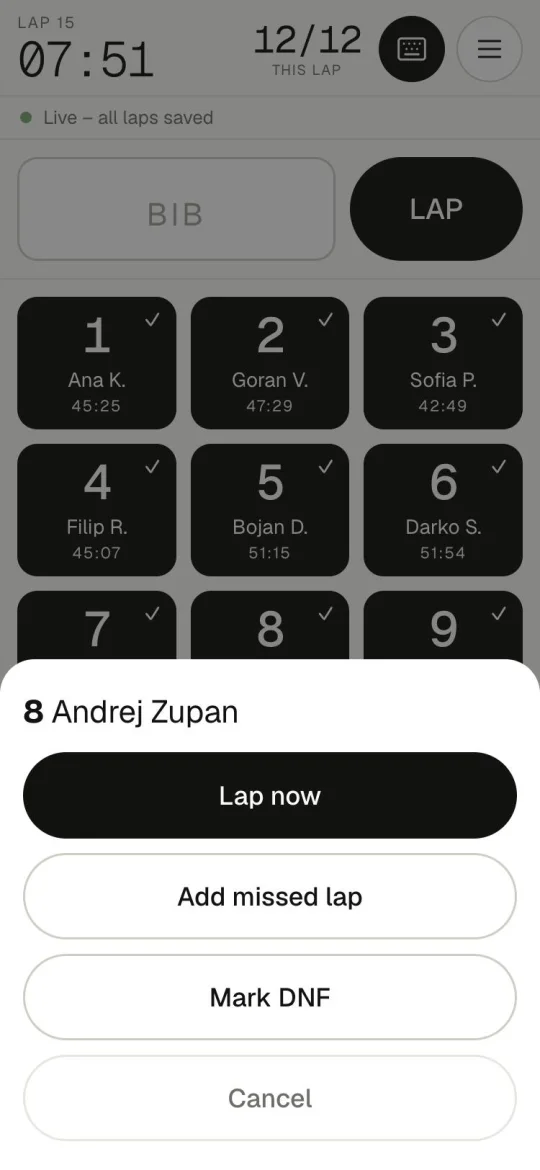
- Hold a button for 1 second for more: Lap now, Add missed lap, Mark DNF.
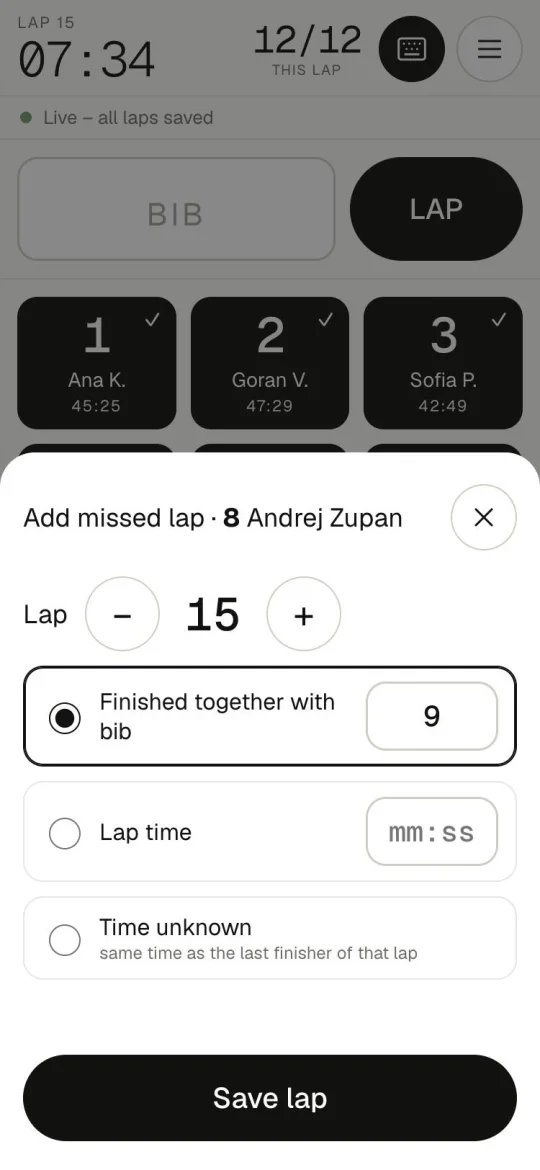
- Add missed lap – the runner finished, but nobody tapped. Choose "finished together with bib …" (same time as another runner), type the lap time, or "time unknown".
- DNF runners move to a folded list at the bottom. Tapping one asks first – a lap after a DNF does not count. If only a tap was missed, use Add missed lap instead.
The timer on a laptop (Timing tab)
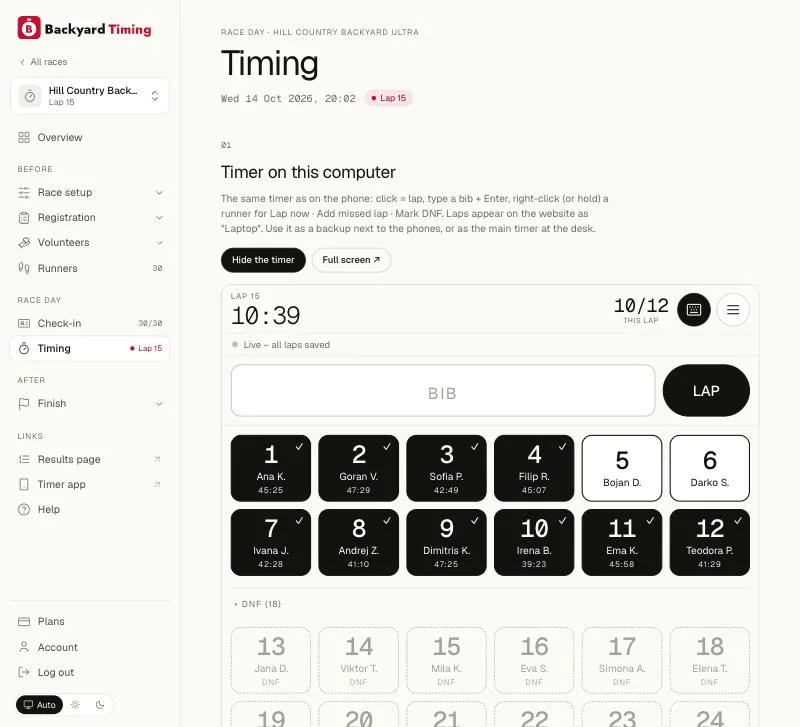
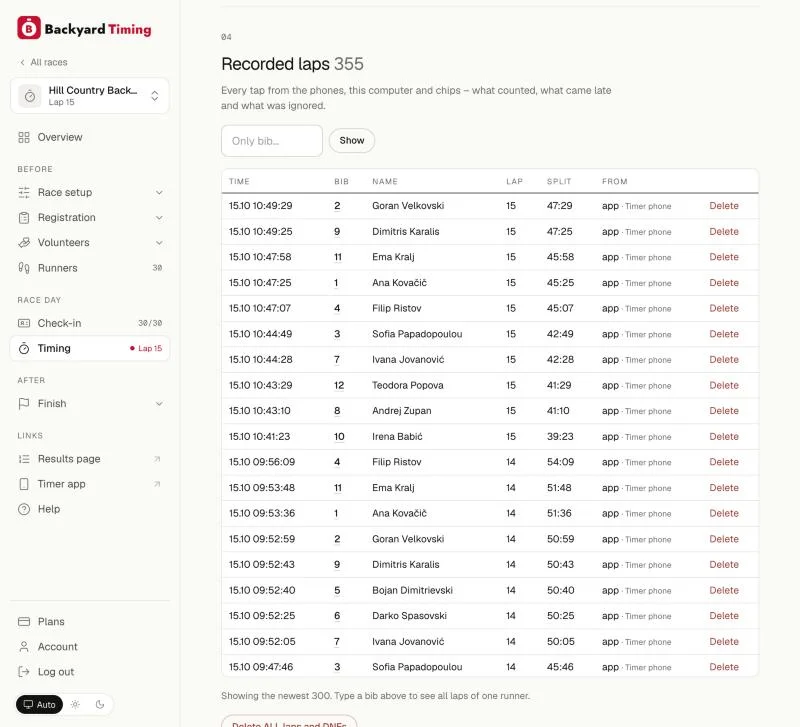
The Timing tab has the same timer as the phone, for the laptop at the desk – no PIN needed, because you are logged in. Click = lap, type a bib and press Enter, and right-click a runner for Lap now · Add missed lap · Mark DNF. Laps from the laptop show as "Laptop" on the Timing tab. Use it as a backup next to the phones, or as the main timer at the finish desk. It needs internet; taps wait in the browser until they are sent.
Chip timing (optional)
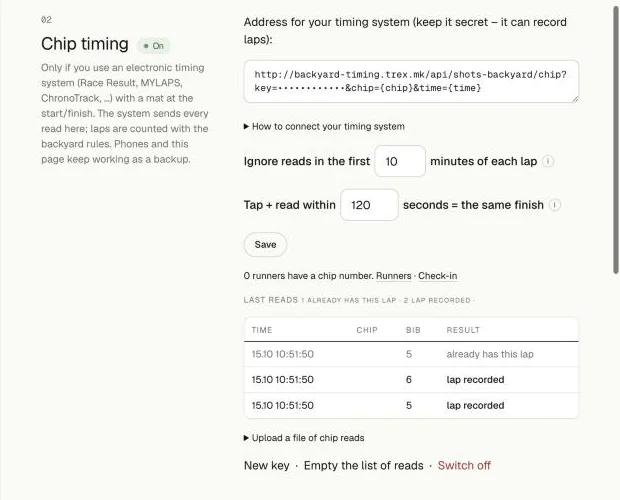
If you use an electronic timing system with a mat at the start/finish (Race Result, MYLAPS, ChronoTrack…), switch on Chip timing on the Timing tab. You get a secret address for your timing system; it sends every read there, and the platform counts laps with the backyard rules:
- Reads in the first minutes of a lap (default 10) are the runners starting, not finishing – they are ignored.
- One finish per runner and lap. A phone tap and a chip read close together (default 2 minutes) become one lap with the exact chip time; other reads in the same lap are shown as duplicates.
- Chip numbers come from the Runners list, a CSV column
chip, or the check-in desk. A read with an unknown chip shows in red in Last reads. - No live connection? Upload the reads file from the timing software after the race (one read per line:
chip,time). The same file can be uploaded twice – nothing is counted double. - The phones keep working as a backup, so a power cut at the mat does not stop the race.
Timer app menu and settings
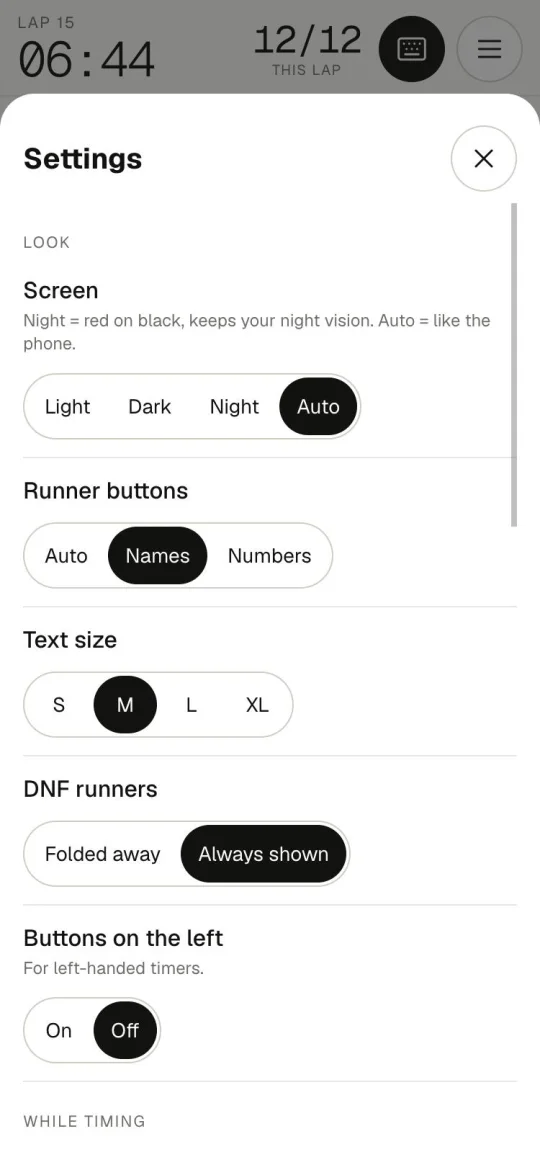
☰ opens Recent taps (with Undo for each tap), Settings, Check-in & bibs, Results page, Reload runners and Sign out (forgets the PIN on that phone). Settings are saved on each phone:
- Screen – Light, Dark, Night (red on black – keeps your night vision) or Auto.
- Runner buttons – numbers, names or auto; text size; DNF runners folded away or always shown; buttons on the left for left-handed timers.
- Keep screen on, vibrate and click sound on tap.
- Start signals – whistles 3, 2 and 1 minutes before every start, beeps for the last 5 seconds and a horn at the start. Keep the volume up or connect a loudspeaker.
- Phone name (e.g. Main or Backup) – shown with every lap on the website. And the app language for this phone.
Checkpoint timing (optional)
Put a helper with a phone somewhere on the loop – at a water station, at the top of the hill – and they tap the runners as they pass. Their taps never count as laps: laps are only taken at the start/finish.
- Set up: Race setup › Course & maps › Checkpoints. Give each checkpoint a name (optional) and its distance from the start, e.g. "Water station, 3.2 km". Up to 6.
- The helper's phone: send them the link shown under the checkpoint and the race PIN. The phone remembers both. It looks like the timer: one button per runner still in the race, tap = passed, UNDO in the message, ☰ › Recent taps to remove one. No signal? The taps wait on the phone, like laps do.
- Map and course strip: a runner who passed the checkpoint jumps to it and moves on from there at their pace of this lap. Runners who have not reached it yet wait just before it.
- Safety: when a runner is clearly later at the checkpoint than usual (20 % or 4 minutes), the results page and the announcer screen show "⚠ not at Water station yet" – check on them early. This only works while somebody is tapping at that checkpoint in this lap.
- On the timer phone: when a runner is late at a checkpoint, a red strip appears under the clock – "⚠ Not at Water station yet: 9 · 14" – and the phone buzzes. Tap a number to see how late they are. Check on the runner: send someone, or call the checkpoint.
- Announcer: "Just passed Water station: Ana K. 21:40 (40 s faster than usual)" and, for each runner still out, where they were last seen.
- Results: open a runner – each lap shows the checkpoint time next to it (⚑ 21:40).
Phones – is every timing phone alive?
On the Timing page, Phones lists every timer and checkpoint phone (and the laptop timer). Each one checks in every 30 seconds: green = fine, orange = no news for over a minute or taps waiting to be sent (no signal), red = silent for 5 minutes – go and check that phone. You also see the battery, the last tap and the app version ("old version" = open the app once with signal). Give each phone a name in the timer app: ☰ › Settings › Phone name ("Main", "Backup").
No signal? Nothing is lost
Every tap is saved on the phone first, then sent to the website. The strip under the clock tells you the state:
- Green, softly pulsing – "Live – all laps saved": everything has reached the website.
- Orange – waiting for signal. Keep tapping; the laps are sent when signal is back.
- Red – a problem the app explains (e.g. wrong PIN, a bib not in the list).
Backyard rules – done for you
- A runner must finish each lap before the next start. Crossing the line after the new start (within the late window) is a late finish: the lap does not count and the runner is DNF.
- A tap in the first minutes of a lap (inside the late window) never counts as a finished lap. If the runner had already finished the previous lap – e.g. they were tapped when they came to stop, or a button was touched by mistake right after the start – that tap is simply ignored.
- Every runner who stops is DNF, with the reason on the results page: missed lap 9, late 61:20 or stopped (marked by you).
- Missed a lap = DNF automatically when the next lap starts. The app's "Missed last lap?" warning reminds you to check, in case only the tap was missed.
- The winner is the last runner standing, after finishing one more lap alone. The runner who stopped last is marked assist. If nobody completes the final lap, there is no winner.
- The race ends by itself: the results say "Race finished".
Results, TV and announcer
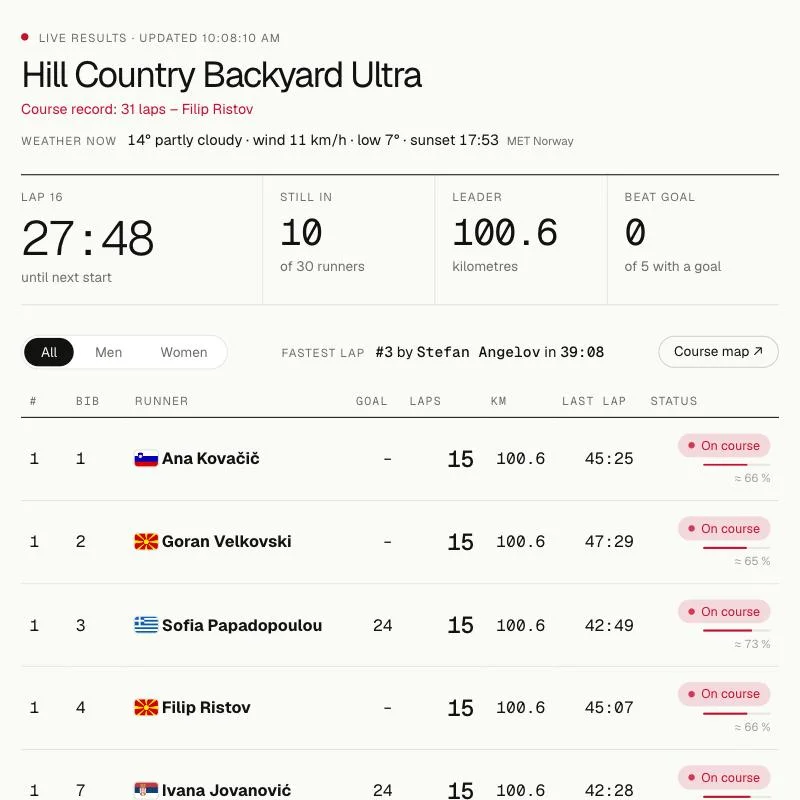
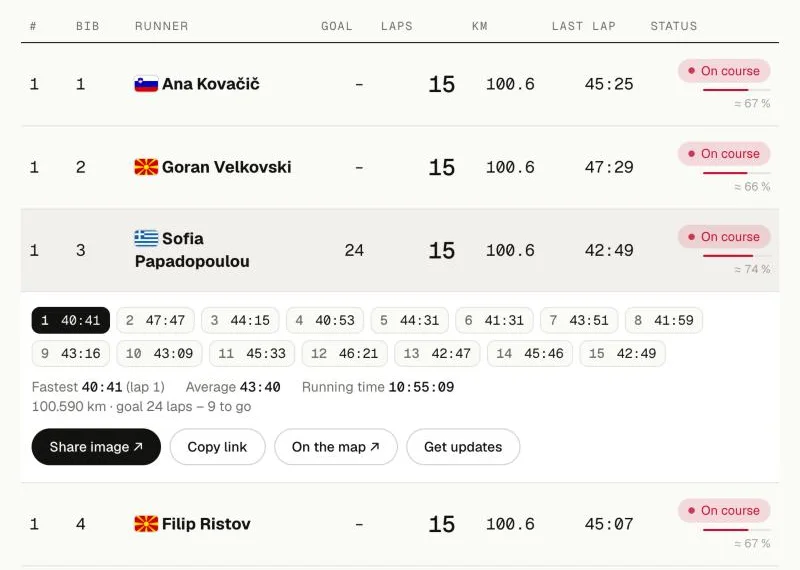
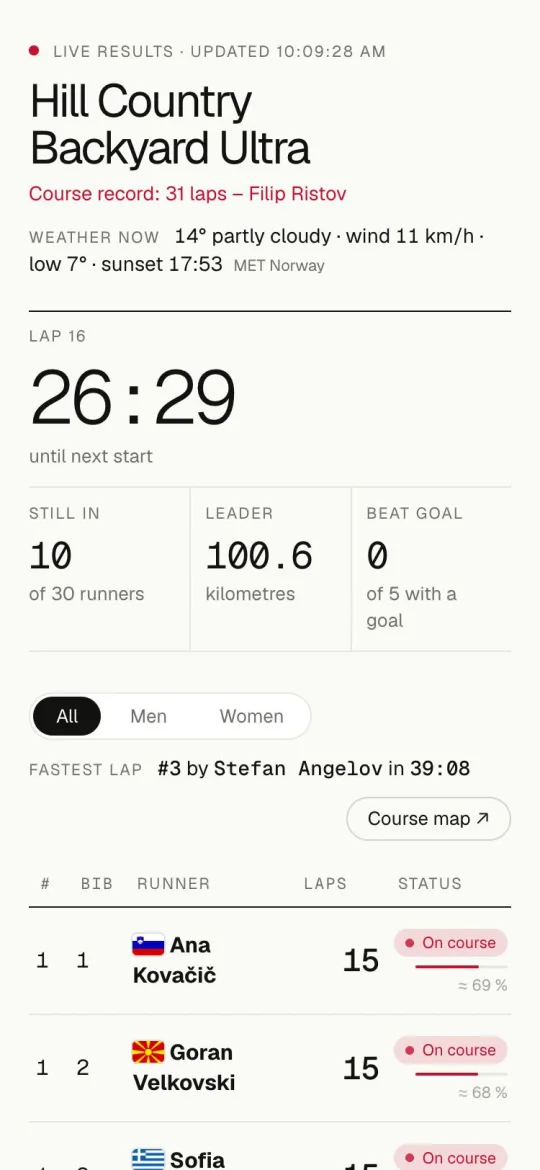
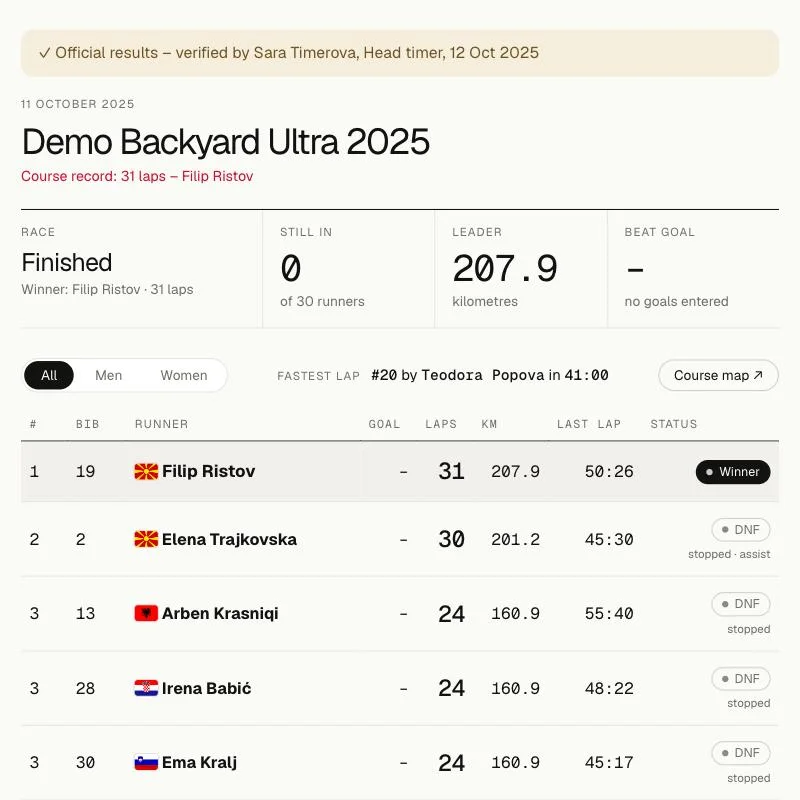
The results page (/r/your-race) updates by itself every few seconds: the clock, runners still in, leader distance, who beats their goal and the fastest lap. Click a runner to see every lap time, average, distance and a share picture. Filters for women, men and non-binary runners. Under the race name: the course record and the ticket the winner earns (if set). When the race is over, each runner's details have a 📜 Certificate link.
Runners out on the course get a small bar with ≈ how far round they are – an estimate from their usual lap time, not GPS. 🗺 Course map above the list opens the course view in a new tab, and a runner's details have On the map – families can follow one runner, shown in red, with "expected back ~12:47".
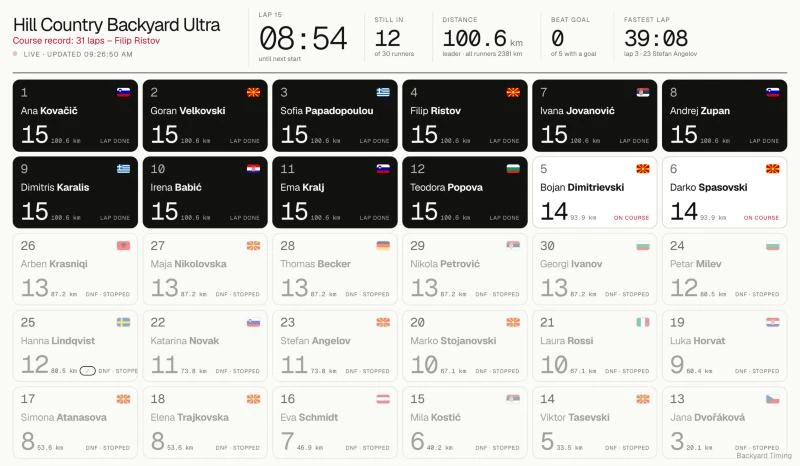
- TV mode – every runner as a big tile, with the clock to the next start. Open it on a laptop connected to a TV at the corral. The buttons top right are always there: minimize (leave full screen), full screen, close, and below them the map / tiles button. The dot next to "Live" is green while the numbers are fresh, orange when no update came for a minute or two, red when the connection is lost (it keeps trying). When the race is over, TV shows the tiles.
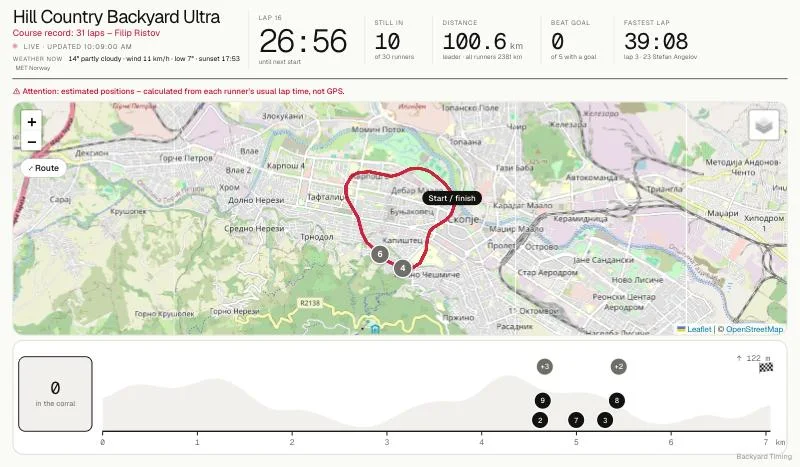
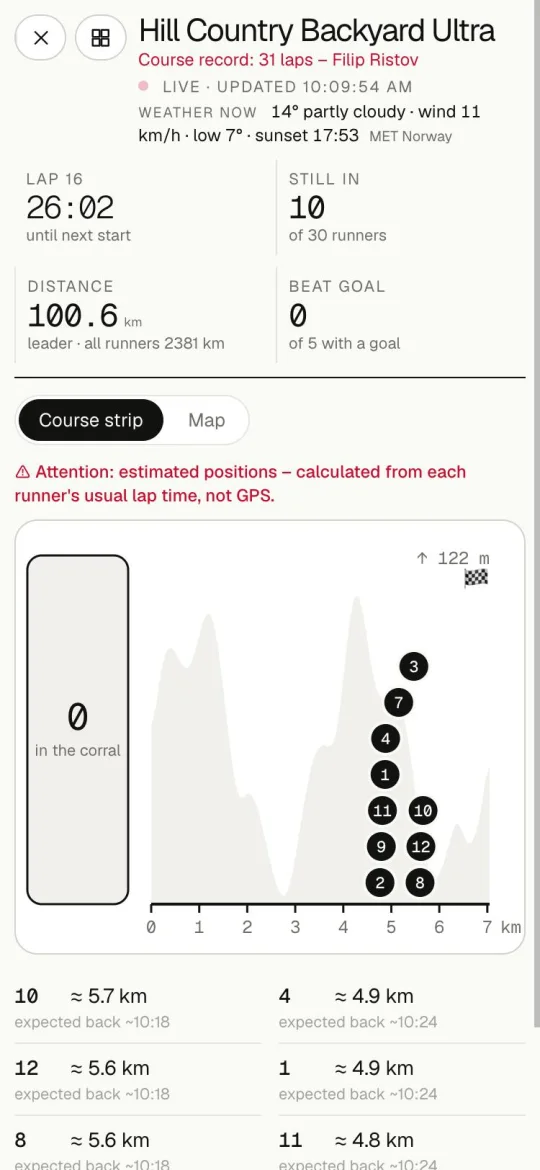
- Course view (TV map mode) – the map button (top right, next to minimize / full screen / close) replaces the tiles with the course; the header and numbers stay. On the course strip below the map the loop is stretched into one line from start to finish, with the height profile; every runner on the course is a dot with the bib number, runners who finished the lap wait "in the corral". Dots move slower uphill and turn orange when a runner is later than usual. The red Attention line is a reminder that these are estimates, not GPS. On the map: Grouped (runners close together share one grey circle with the number of runners) or Individual (every runner as a small dot with the bib and a short name – zoom in when they are close together); the same switch sets the course strip below the map: Grouped = dots on the height line, runners close together share one grey circle; Individual = small dots on the line with a thin line up to the bib and name (on phones always grouped). The choice is remembered on that device. Streets, Terrain / forest, Light or no background, and ⤢ Route brings the whole loop back into view (on its own after 2 minutes). By itself, TV mode shows the tiles at the start and end of each lap and the map in between (Race setup › Course view – default minute 5 to 50). On a phone the course strip comes first, the map is one tap away.
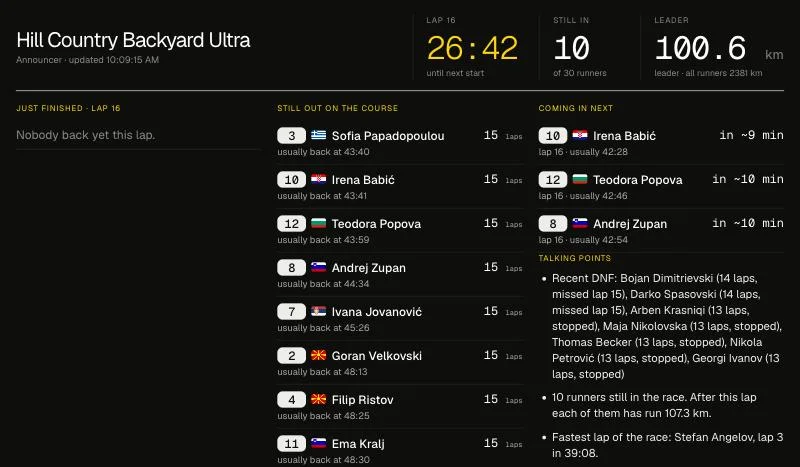
- Announcer – who just came in, who is still out and later than usual, coming in next (who should arrive in the next 10 minutes), goals beaten and talking points – ready for the microphone. Near the course record it tells you: "only 3 laps to the course record", "record equalled", "NEW COURSE RECORD!", and which ticket the winner earns.
- QR poster – print it and hang it at the start: spectators scan it for live results.
4. After the race
The story of the race
Every results page links to The story of the race (address: your results page + /story). It tells the race in pictures, from the laps you timed – nothing to set up:
- The field, lap by lap – how many runners were still in after each lap, and which lap was the hardest.
- Lap times – a shaded band shows the middle half of the field in each lap, with the typical lap as a line through it; the winner in red, the assist in blue. Highlight a runner picks anyone else (the link then opens with that runner – nice to share). Hover (or tap) a lap for the numbers.
- Winner and assist – fastest, average and slowest lap, rest between laps, day and night, side by side.
- Day and night – the typical lap time of each lap, and how much slower (or faster) the same runners were at night. Night = your night loop times, otherwise sunset to sunrise at the race place (from Race setup › General › Place or the GPX), otherwise 20:00–06:00.
- Moments – first to stop, the hardest lap, the closest call, the most even pacing, the last duel.
It works during the race too ("so far") – share the link after the race.
Every runner has their own page too: the results page + /runner/ + the bib (e.g. /runner/9). Their result, fastest and average lap, rest per lap, their lap times against the field, day vs night, every lap with the checkpoint times, the certificate and a Share button. Open it from the results table (tap a runner › Race in pictures); the certificate e-mail after the race links to it as well.
Thank-you certificates for sponsors
Finish › Sponsors makes a certificate of thanks (in Macedonian: благодарница) for every sponsor: your race logo, their logo and name, your words, what the race achieved (starters, kilometres everybody ran together, the winner) and the same signatures as the runners' certificates. Open / print one, Print all / PDF, or Send it by e-mail – the sponsor gets a link to their certificate plus the results and the story of the race. Add each sponsor's e-mail (and, if you like, "what they gave", e.g. "water and fruit for the aid station") in Race setup › Logos & sponsors or right there in the list. Somebody helped without a logo on the results page (a farmer with watermelons, the scouts, the landowner)? Add them under Others to thank – name, e-mail, what they gave – and they get the same certificate without a logo. Under Your words you can change the title and the text.
What works in a backyard
The results page and the story page link to What works in a backyard (results page + /insights): lessons from your race's lap times – which starting pace went furthest, steady vs uneven pacing, the warning signs before runners stop (slower last laps, laps over 90 % of the hour), the night, the hours when most runners stopped, and how the top runners did it compared with everybody else. Below: tips for pacing, the break between laps, food and drink, the night, sleepiness and the crew – with your race's numbers in them. Good to share with your runners before next year's race.
Change log
The Finish tab has a Change log: who deleted or corrected a lap, marked a DNF, closed or opened the race, verified the results, made a new PIN, changed chip timing, bib numbers or access – with the time. Taps from the timer app show the phone's name. Normal laps are not listed (they are on the Timing tab).
Sponsors
In Race setup › Sponsors add up to 8 logos, each with a name and an optional link. They are shown under the results ("Thanks to our sponsors", linked), on the printed results list and at the bottom of every certificate, and they come along to the next edition.
Lottery
Popular race? In Registration › Settings of the form tick Lottery instead of first come, first served (and optionally write when the draw is). Everybody who signs up is then in the lottery – nobody pays yet. When registration has closed, the Lottery box on the Registration tab shows how many applied: type how many runners to draw and press Draw now. A fair random draw puts them into the race; everybody else goes onto the waitlist in the drawn order. Then press Send the result e-mails: drawn runners get your payment instructions, the others their waitlist number. The draw is final; later you move people from the waitlist into the race as usual.
Updates by e-mail – follow a runner
On the results page every runner has 🔔 Get updates. Family, friends and crew type their e-mail, confirm it (one click in the first e-mail – nobody can sign up someone else), and then get an e-mail for the big moments: the runner's goal reached, every 6 yards, out of the race, winner or assist. In Race setup › Updates by e-mail you can switch it off, or also allow an e-mail after every lap – that sends many e-mails, so check the daily limit of your e-mail service first. Every e-mail has a link to stop them. The e-mails go out within about a minute of the lap.
Volunteers
A backyard runs day and night, so the Volunteers tab helps you fill the shifts. Add shifts – a task (Timing desk, Aid station, Start corral…), start and end time and how many people; every shift needs its own name (e.g. "Aid station – day" and "Aid station – night") – and switch the volunteer sign-up page on. Share its link: helpers tick one or more shifts and leave their name, e-mail and phone (only you see them). Their sign-up is a request: on Volunteers › Shifts you confirm or decline it (with a short note) – they get an e-mail either way, and confirmed helpers get a reminder the day before. You can also put anybody on a shift yourself (yourself as race director, the race staff, earlier volunteers, or a new name – also when the shift is full), move people to another shift, and change a shift (time, place, task) – tick "E-mail the people on this shift" and they are told. Volunteers › People lists every helper with all their shifts; Add to race staff makes a helper part of the race staff (e.g. your Timer – the login is given in Race setup › Race staff). Volunteers › Schedule shows all shifts on a time line, red where people are still missing. Every helper gets a cancel link; if someone cancels, you get an e-mail.
Race staff – co-directors, timers, medical, helpers
Race setup › Race staff is one list of everybody who works at your race. For each person: name, e-mail, phone, job at the race (Co-director, Timer, Medical, Aid station, Course marshal … or your own words) and location (from Race setup › Locations). You are on the list too: Edit on your own row gives you a job, place and phone for this race. A login is separate and optional – choose one and the person gets an invitation by e-mail (14 days):
- Co-director – everything in the race (also the plan / payment) except deleting it and changing logins.
- Timer – check-in, timing, chip timing, the PIN, deleting laps, and at the end closes the race and verifies the results (their signature goes on the certificates).
- Staff – Overview (timer app PIN), Check-in and Timing; never runners' e-mails or dates of birth.
"Remove login" takes the login away but keeps the person and their job. Tick Show the race staff on the results page to list names and jobs under the results. Everybody comes along to the next edition (logins only if accepted). Who signs the certificates is chosen in Finish › Certificates: you, plus up to two people of the race staff.
Locations
Race setup › Locations: the places of your race – start corral, timing tent, aid station, medical tent, parking – each with a short note and an optional map link (e.g. a Google Maps pin). Shifts and race staff get a location; it is shown on the volunteer page, in their e-mails ("Where: Aid station – next to the start tent, map: …") and on the emergency list.
Equipment checklist – under each location, open Equipment and list what has to be there: "Water", "Cups", "First aid kit", with an amount if you like ("40 l", "2"). Backyard Timing suggests items that fit the place (aid station, timing tent, medical tent, check-in desk, start corral, kitchen, parking, course) – tap one to add it, or Add all. Tick items off while packing or setting up; the number at the top shows how far you are ("23/40 packed"). Print the checklists gives a paper copy for every place; Untick all starts packing again. The lists come along to the next edition (unticked).
Race director profile
In My account you fill in your race director profile once: first and last name, role (e.g. "Race director"), organization, country, a contact e-mail for runners and a picture of your signature (a PNG with a see-through background looks best). It is used in all your races: on certificates, the printed results list, as "verified by" and at the bottom of every e-mail to runners – and when runners reply, the answer goes to your contact e-mail. Name, role and signature are public; organization, country and contact e-mail are only used in e-mails. Until the profile is complete, the dashboard and each race's Getting started list remind you.
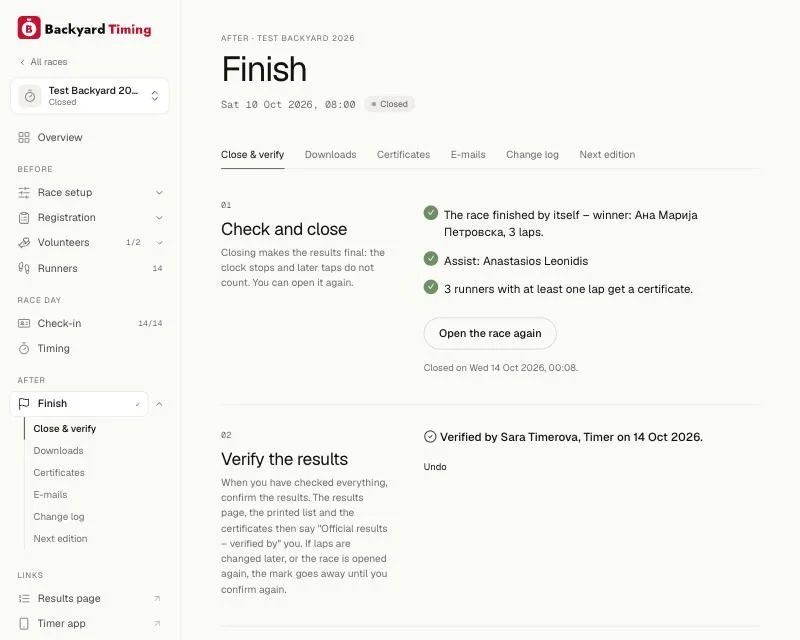
Everything for after the race is on the Finish tab:
- Check and close – the winner and assist, taps that came after the close, chip reads that did not count, how many runners get a certificate. Close the race makes the results final: the clock stops and later taps are ignored. Runners still in at that moment are shown as "In at close". You can open it again.
- Verify the results – when you have checked everything, press I checked the results – verify them. The results page, the printed list, the certificates and the e-mail to runners then say "Official results – verified by" your name and role, with the date. If a lap is added or deleted later, a runner's DNF is changed, or you open the race again, the mark goes away until you verify again.
- Corrections – the Timing tab lists every tap with its split, the phone that recorded it and marks for late or ignored taps. Delete a wrong tap, or record a lap with a time (shown as "corrected", only for you).
- Downloads – as Excel or CSV: Results (every runner with every lap time), Backyard Ultra format (exactly like the results template Big's Backyard Ultra sends to affiliated races: No. of Loops, First Name, Family Name, Date of Birth, Gender M/F/O/P, IOC Nationality, Display Name – names in English letters, the full name with accents or Cyrillic in Display Name; check it and send it), All laps (every tap and where it came from), Chip reads and the Runners list. Printable results list – print it or "Save as PDF".
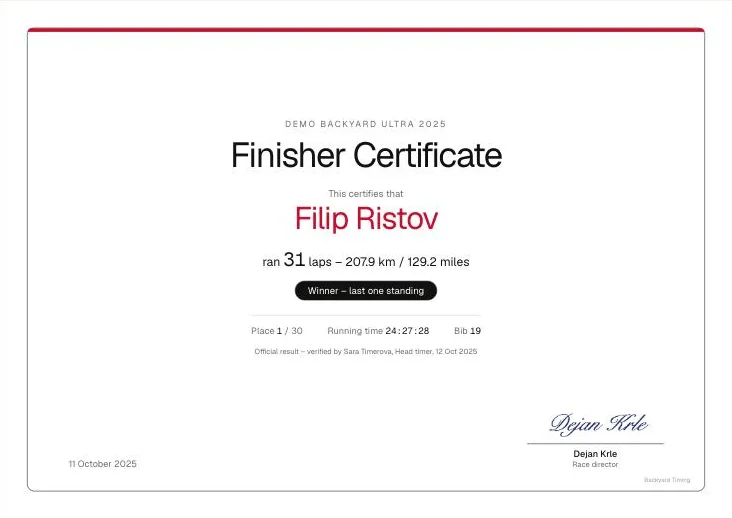
- Certificates – one for every runner with at least one lap: your logo, the runner's name, laps, distance, running time, place, Winner / Assist, goal beaten, and up to three signatures. Normally they are signed with your profile (My account – see Race director profile); untick "Sign with my profile" to type someone else's name, role and signature for this race. All certificates – print / PDF puts them all in one file.
- Race team – add co-directors and staff with their name and role. Tick signs certificates to add their signature next to yours (two more at most), and tick Show the race team on the results page to list everyone under the results and on the printed list. The team is copied to the next edition.
- E-mail to runners – one e-mail to each runner with your words (a thank-you), their result and the link to their certificate and the results. It goes out a few at a time and shows "sent X of Y"; "One by one" sends it again to a single runner.
- Next edition – pick the date and press "Create next edition": a new race with the same settings, logos, certificate texts and registration settings. This year's results stay online, and the editions are linked. When the new registration is on, the Registration tab offers Invite last year's runners: one e-mail with the sign-up link, only to runners who have not signed up yet.
- Plan – whether your next edition is covered. Season plans get a reminder e-mail 30 and 7 days before they end.
5. On your own website
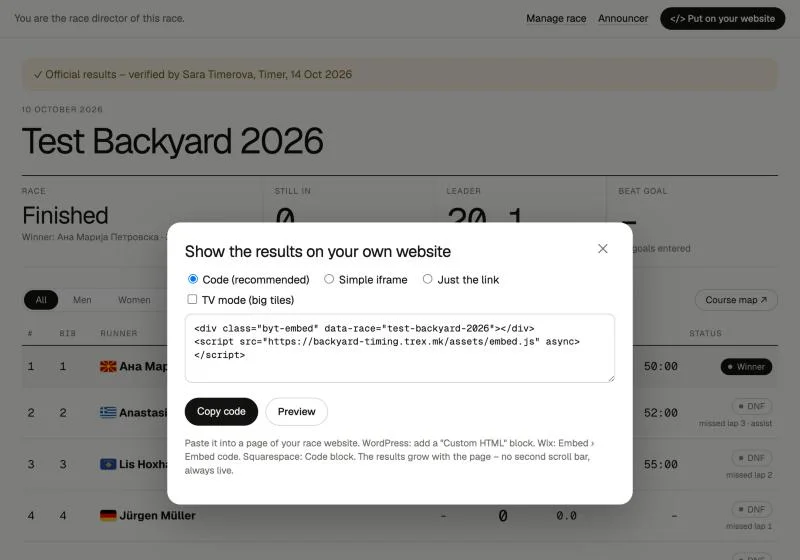
On the Overview, open Show the results on your own website (or press </> Put on your website on the results page when you are logged in). Copy the code and paste it into your site:
- WordPress – add a "Custom HTML" block. Wix – Embed › Embed code. Squarespace – Code block.
- Code (recommended) grows with the page – no second scroll bar. Simple iframe works where scripts are not allowed. Tick TV mode for big tiles.
- The sign-up form has its own code on the Registration tab.
6. Plans and payments
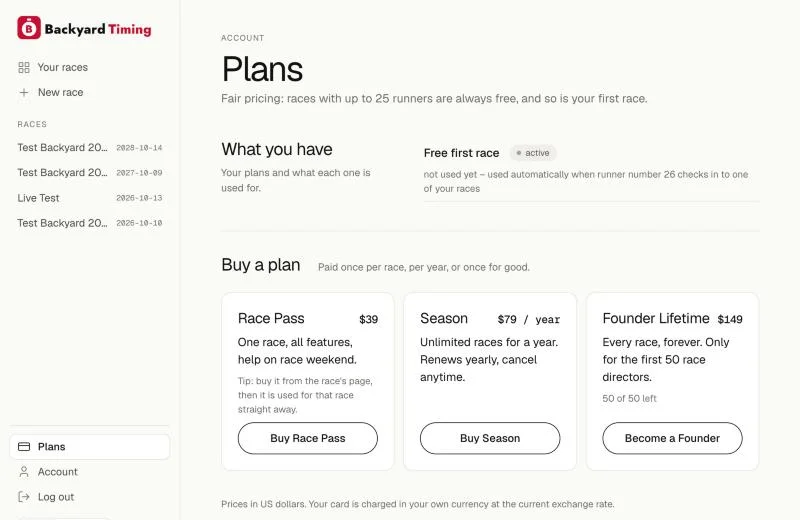
- Free: your first race (any size), every race with up to 25 checked-in runners, and charity races (write to us for a free code).
- Race Pass $39 – one race of any size.
- Season $79 per year – unlimited races; cancel any time.
- Founder Lifetime $149 – every race, forever; only for the first 50 race directors.
A plan is used the moment runner 26 checks in. There is no time limit: once covered, a race stays covered until the last runner stops – 20 hours or 100. Payments go through Lemon Squeezy; invoices and cancelling are on the Plans page.
7. Problems and answers
- A timing phone was lost, or a helper should stop timing.
- Overview › New PIN. Every phone must type the new PIN; the old one stops working.
- I tapped the wrong runner.
- Press UNDO at the top straight away. Later: ☰ › Recent taps › Undo, or delete the tap on the Timing tab.
- A runner finished but nobody tapped.
- Hold their button › Add missed lap › "finished together with" another bib, or the lap time. Do it before the next lap ends if you can – the "Missed last lap?" warning reminds you.
- The phone has no signal.
- Keep tapping. The strip turns orange and the laps are sent when signal is back. Do not lock the app or clear the browser data meanwhile.
- The timing phone died.
- Open the timer on the backup phone (same PIN) and continue. Laps already sent are on the website; when the first phone comes back, its waiting taps are sent too.
- The start time is wrong.
- Fix it in Race setup. Taps are kept with their real time and are counted again for the new start.
- The screen keeps locking.
- Timer settings › Keep screen on. On iPhone also set Settings › Display › Auto-Lock › Never.
- No start signals on iPhone.
- Turn off silent mode, keep the volume up, and tap once on the screen after opening the app (iPhones play sound only after a touch).
- The results page does not change.
- Check the timer phone: is the dot green? If orange, the laps are still on the phone. Is the race public (Race setup)?
- Runner 26 cannot check in.
- The race needs a plan – see Plans. A free first race or Race Pass you already have is used automatically.
- I closed the race by mistake.
- Finish › Open the race again (or Overview › After the race).
- Test taps are still there.
- Timing tab › Delete test laps (before the start), or Delete ALL laps and DNFs after a separate test race.
- A runner is DNF but is still running.
- DNF because of a missed tap: hold their button › Add missed lap – the DNF disappears. Marked DNF by mistake: Runners tab › DNF column › Undo.
- The confirmation email does not arrive.
- Look in the spam or promotions folder. On the "Check your email" page you can send it again, or fix a typo in your email address.
- The timing phone died and there is no second phone.
- Open the Timing tab on any laptop where you are logged in and press Show the timer – it is the same timer, no PIN needed.
- Chip reads do not arrive.
- Timing tab › Chip timing: open the address in a browser – it should say "Connected". Check that the chip numbers are in the Runners list. Red lines in "Last reads" show reads with an unknown chip or a time that was not understood. Phones keep timing meanwhile.
- My language is missing.
- Write to us via Help us translate. We send you one file with all texts.
- Something else, or an idea?
- Feedback & ideas – we read everything.

Made by a race director, for race directors.
- Website
- backyardtiming.com
- morigatto@gmail.com
- Feedback & ideas
- backyardtiming.com/feedback
- Made by
- Dejan Krle, race director of Punk's Backyard Ultra
Version 0.44.4 · October 2026